Wednesday, October 5, 2011

Using the XPOSE for Dancing


Using the XPOSE for Dancing 111005


The XPOSE is a system for controlling one to fifteen avatars' animations and positions. It also can rezz stored objects. The XPOSE is best known as the system behind sex furniture, but it is also very useful for controlling dancing especially in shows. This notecard explains the use of the XPOSE for dancing.

=====

WHERE TO FIND THE XPOSE

The XPOSE was created by Miffy Fluffy and is found at XPOSE. You can get a free one with limited use or pay for versions that offer greater features.

=====

OVERVIEW OF THE XPOSE

There is a complete set of notecards inside the XPOSE that take you step-by-step through its operation. For dancing the XPOSE does three things
  1. ANIMATION SEQUENCE & TIMING - The XPOSE controls the dance animation timing for 1 to 15 avatars. For example, you can make and play dance sequences so 1 to 15 avatars can dance in sync or dance separate dance sequences.
  2. AVATAR POSITION - The XPOSE controls the x,y,z position of 1 to 15 avatars and let's you move to a different x,y,z position when you want.
  3. REZZ OBJECTS - The XPOSE can rezz objects up to 256 linked prims.
The XPOSE scripts are all contained in one prim that can be modified. To use your XPOSE you must have rezzing rights. In the contents of the XPOSE prim are several modifiable notecards, two of which are important for controlling the sequence of dances (.MENUITEMS) and positions of the dancers (.POSITIONS). You rarely use the other notecards. To create a dance sequence you modify the .MENUITEMS and .POSITIONS notecards.

=====

INSIDE THE .MENUITMES NOTECARD

The .MENUITEMS notecard is used for setting the sequence and timing for 1 to 15 dancers. The .MENUITEMS notecard also creates the menu that you use to control the dances. An example of the .MENUITEMS notecard is found in the DANCE QUEENS Free Stuff Box.

The first section of the example .MENUITEMS card shows the main menu.

-----
MENU: XPOSE Main Menu
TOMENU Holder1
TOMENU Alone
TOMENU F F
TOMENU FMF
STOP
GIVE Help | !XPOSE Help
TOMENU Options >>
-----

Each of the lines is important.

MENU: XPOSE Main Menu - This is the name of the main menu that shows up when u click on the xpose prim to activate the XPOSE.

TOMENU Holder1
TOMENU Alone
TOMENU F F
TOMENU FMF
These are links to submenus in the XPOSE. In this case there are four submenus.

STOP - This stops the action and should be on every menu and submenu that can be seen in the XPOSE.

GIVE Help | !XPOSE Help - This gives a help notecard to whoever is using the XPOSE. This is important only if others are using the XPOSE. If you are the ony one to use it, you can omit this line.

TOMENU Options >> - This is an essential line that is used to get to the options menu and is important when you are adjusting pose ball positions that is explained later.

Under the Main Menu is the listing of submenus. You can even have sub-submenus. I choose to separate the menus with a blank line to make it easier to see the sections. The format of the submenus for dancing is pretty much the same from submenu to submenu.

Here is the first submenu in the example .MENUITEMS notecard:

---
MENU: Holder1 | ALL | PINK
POSE •Dance 1 | My-SLOW Dance-04
POSE •Dance 2 | My-SLOW Dance-05
POSE •Dance 3 | My-SLOW Dance-06
POSE •Dance 4 | keep that tune
POSE •Dance 5 | keep that tune 2
POSE •Dance 6 | keep that tune 3
POSE •Dance 7 | AkaeshaDanceMisc10 - Mosh Pit
POSE •Dance 8 | AkaeshaDanceMisc11 - Mosh Pit
POSE •Dance 9 | AkaeshaDanceMisc12 - Pete Townshend
STOP
BACK
---

Every submenu starts with the title or name of the submenu which is Holder1 in this case. If the submenu is linked from the main menu this name must be exactly the same in the main menu and this line of the submenu. The XPOSE requires complete accuracy in names and spacing ... I mean complete.

TOMENU Holder1
MENU: Holder1 | ALL | PINK

On the name line for the submenu is the word ALL, which in this case means anyone can use this submenu. PINK completes the line and means that a pose ball colored pink is rezzed by starting this submenu. The position of the pose ball is determined by the .POSITIONS notecard discussed later.

You can have 12 buttons on a submenu page. I recommend that two of these be BACK and STOP. Stop always stops the animations, while BACK takes you to the previous menu. The remaining 10 buttons can be for actions such as dancing or rezzing an object. In the example submenu nine dances are listed using the POSE command. The POSE command simply tells the XPOSE to run the animation associated with the command.

Now, Scroll to the bottom of the .MENUITEMS to the next to last submenu named

MENU: F F | ALL | PINK | PINK

This menu should begin to make sense. There are two pose balls and both are PINK. You have to use capital letters for the colors which are defined in the rarely used .SETTINGS notecard.

The second line is a POSE command but for two people.

The third line uses the PLAY command:
PLAY Slick | •Dance 26=26 | •Dance 32=20.9 | •Dance 33=24.7 | •Dance 27=25.9 | LOOP | NOCHAT

This sets a sequence of dances with the time defined for each dance.

=====


SETTING DANCE SEQUENCES AND TIMING

The PLAY command in the example is named Slick. It uses four dances in a sequence. This begins to look a lot like how the Huddes works,  but there are some significant differences.

Each dance must be defined for the XPOSE before it can be used in the XPOSE.  The first dance in the sequence is •Dance 26 which runs for 26 seconds. You can find •Dance 26 by scrolling up to Menu: Holder11. Here is what it looks like:

POSE •Dance 26 | JESSE1_DANCE_c_AKEYO | JESSE1_DANCE_c_AKEYO

This dance has both people dancing the same dance which is JESSE1_DANCE_c_AKEYO. This dance has to be in the contents of the XPOSE for the dance to work. Now look at the remaining dances in the PLAY Slick sequence. Aaaah, they are the remaining dances from the Akeyo JESSE series, so all that we have done is make a simple sequence of AKEYO dances using the PLAY command referring back to POSE commands.

The LOOP command does just what you expect. It repeats the sequence.
The XPOSE will tell you in a green colored chat when it changes POSEs in a dance sequence unless you add NOCHAT to the line. I find it annoying so I add NOCHAT almost always.

=====

DIFFERENT AVATARS AND DIFFERENT DANCES

One of the key things that one Huddles HUD cannot do is make different avatars dance different dances at the same time. In fact the XPOSE can control up to 15 avatars each doing a different dance at the same time.

With the .MENUITEMS card scroll to the very bottom to see the last submenu:

---
MENU: FMF | ALL | PINK | BLUE | PINK
PLAY Grind | •Dance 58=30 | LOOP | NOCHAT
PLAY Seated1 | •Dance 59=30 | •Dance 60=30 | •Dance 63=30 | LOOP | NOCHAT
PLAY Seated2 | •Dance 61=30 | •Dance 62=30 | •Dance 64=30 | LOOP | NOCHAT
PLAY Seated3 | •Dance 65=23 | •Dance 66=30 | •Dance 67=30.5 | •Dance 68=20 | •Dance 70=27 | •Dance 69=18 | LOOP | NOCHAT
STOP
BACK
---

The first line is easy to understand and shows the menu is for 3 dancers. Now, look at the second line:

PLAY Grind | •Dance 58=30 | LOOP | NOCHAT

When we find •Dance 58 we find it has three dances in it ... a different dance for each person:

POSE •Dance 58 | d7female | d7male | preening copy

What this does is sets up three pose balls with a different dance for each person
.

We can now make a dance sequence for three (or more) people with each person dancing a different dance. The next line in MENU: FMF does this:

PLAY Seated1 | •Dance 59=30 | •Dance 60=30 | •Dance 63=30 | LOOP | NOCHAT

Conceptually this is just like sequence we made for two people. The only diference is that each avatar dances a different dance. Here is •Dance 59:

POSE •Dance 59 | Bannana Split | AkaeshaMSit03 | f_dance_20 | REZ=Rez chair

I added an additional feature of the XPOSE to this PLAY sequence ... a chair. To do this I used the REZ command to rez an object I had defined as Dance Chair in MENU: Holder 21:

REZ Rez chair | Dance Chair | UNREZ-P

So, PLAY Seated 1 rezzes a chair and has each avatar dancing a different sequence ... WOW, you cannot easily do that with the Huddles.

One of the things you will need to design into your sequence is that different dances have different loop times. So you may want to change the dance for person 1 but not for persons 2 and 3. You can do this by using a different POSE with the changed dance for person 1. The way the XPOSE works (and Huddles too) is that if the notecard changes the POSE but the dance a person is doing does not change, it does not restart the dance. The XPOSE continues the dance. This concept becomes important when you are making an animation sequence for a show and can get quite complicated.

The length of a line is also limited to 256 characters, but you can continue the sequence on a new line by starting the next line with the | symbol.

=====

SETTING POSITIONS

We have set up the dance sequences and timing, but we have not placed the dancers where we want them. This is the purpose of the second important notecard in the XPOSE called the .POSITIONS.

Look at the sample .POSITIONS notecard in the DANCE QUEENS Free Stuff Box. Take a look at line 3 of the .POSITIONS notecard:

{•Dance 1} <-1.227,0.195,0.881> <-2.1,2.2,45.1>

This line sets the position of •Dance 1 which we defined in the .MENUITEMS notecard. This was a single dancer so we are defining only the position of one pose ball. The pose balls are rezzed by the XPOSE when you select the POSE or a PLAY containing a POSE. The pose balls are rezzed relative to the position of the XPOSE. If you put the XPOSE upside down or orient it 90 degrees the pose balls will be rezzed relative to the current position of the XPOSE.

The format of the position is pretty simple. The first set of numbers inside the brackets <-1.227,0.195,0.881> are the position of the pose ball relative to the center of the XPOSE in x, y and z coordinates. The second set of numbers <-2.1,2.2,45.1> is the rotation in degrees on the x axis, y axis and z axis. Don't be afraid of all these numbers. There is a simple way of getting them.

Normally I set up one dance sequence at a time by defining the sequence in the .MENUITEMS card then defining the positions in the .POSITIONS card. I start out with the pose ball at almost any position, then use the adjusting feature of the XPOSE to move the pose ball to where I want it and print the position in chat. Then, I just cut and paste the information into the .POSITIONS notecard. The XPOSE instructions explain how to do this.

Now, scroll down the .POSITIONS notecard to find

{•Dance 26} <0.727,0.195,0.881> <-2.1,2.2,90> | <1.477,0.195,0.881> <-2.1,2.2,90>

This is an example of a two person dance. The concept is exactly the same for positioning each dancer and the two are separated by using the | symbol. You can set the positions of up to 15 dancers using the same method.

You can set the position of dancers for each POSE. The positions can change so in this way you move dancers around the floor.

The pose balls cannot be more than 10 M from the center of the XPOSE. For you math inclined this can be calculated by first determining the distance between the XPOSE and pose ball for the x, y and z coordinates, e.g. x1, y1 and z1. Square each distance and add them together, then take the square root. This gives you the distance of the pose ball from the XPOSE. Anything over 10 will not work in the XPOSE.

If you are not math inclined, rezz this DANCE QUEENS - XPOSE Distance Checker found in the DANCE QUEENS Free Stuff Box and place it at the exact x,y,z coordinates of the XPOSE center. Any pose ball outside the ball will not rezz.

=====


SETTING THE POSITIONS OF REZZED ITEMS

To rezz an object you have to have to do several things. First, the object must be 256 or fewer prims (linked). The object must be both copy and transfer. It must contain the script :XPOSE Rez Object which is available in the XPOSE. The object cannot be more than ten meters from the center of the XPOSE.

Like with the pose balls I start with the object at almost any position then adjust the position as described in the XPOSE instructions. Here is what the result looks like:

{Dance Chair}' <-1.588,-0.096,0.659> <180,0,45>

=====


PUTTING IT TOGETHER

Once you have the .MENUITEMS and the .POSITIONS card done, you put them in the XPOSE and reset it. After resetting click on the XPOSE and test it out.

If you want to try the exact XPOSE used as examples in this class, you can usually find it in a purple table at my club # TTOO BAR. It is in the long part of the table. It is set up for anyone to use.

It is not easy to learn the XPOSE. I think it's equivalent to learning the Huddles. But, once you have mastered it, you have capabilities that are not available with the Huddles.

=====

xxx
Nottoo Wise
The Full Package


The Full Package 111005


Klark Harvy sent us this announcement:

THE DEPOT
This is the home of The Full Package Male Dance Review.

Regular shows here every Thursday at 2pm.

Other events scheduled and The Depot can be booked for private parties.

This place is now open fully to the fan group and my personal friends. There is a Club, a Show Hall, seating and cuddle areas, a beautiful tranquil beach and sky rentals. Please be most welcome to come hang out here and relax and enjoy the ambience.. and please come see a show sometime!

Klark Harvy
Manager and Lead Dancer
The Full Package

Lady Angels Dance Group


Lady Angels Dance Group 111005


Liv Watkins and Deyna Broek announce that they have joined their former dance groups (Bluez Eagle Angels and Lady Lions) into one new dance group called the Lady Angels.

They also have announced their October shows:

Franks Elite Jazz Sunday 10/9/11 from 3-5pm

Club Phoenix next Thursday 10/13/11 from 5- 6pm

Tuesday, October 4, 2011

Show Tips


Show Tips 111004


When you are presenting a show to a large group, you need to plan for many things. This note summarizes the things I have seen at Dance Festivals and shows that helped different groups put on their best show or would have.

=====

1. LAG

Lag is a killer for Dancing. Here are some things you can do:

a. COLLISIONS - Design your stage so there are no collisions. Collisions occur when prims overlap with each other. The sim owner can look at the collisions on her/his sim and help you with it. Collisions cause lag.

b. SCRIPTS - Minimize the scripts in your stage to only the essentials. Again the sim owner can analyze your scripts.

c. CACHE YOUR DANCES - This will help you reduce lag for yourself.

d. RUN YOUR DANCES BACKSTAGE - Once you work on your own lag, you can also reduce the lag that others see by running your dance sequence anywhere on the sim at about the same altitude. The idea is to get the dances that they will see into their cache. You can do this by making a notecard of only the dances that will be used in your show, then in the center of the audience just before your show (or maybe under the audience platform or backstage) run the one second "Load Your Cache" described in 1.c. above. This will get all of your dances into the audience's cache and make their experience better.

e. TELL THE AUDIENCE ABOUT AVATAR IMPOSTERS - The step in 1.c. describes avatar imposters and how they make can make dancing look bad. Telling your audience before a show so they can adjust their Preferences will help their experience.

e. AUDIENCE SCRIPTS - If you are going to give the audience helpful tips, you may want to ask then to turn off their own scripts like HUDs and AOs. This will reduce lag for you.

=====

2. STAGE DESIGN AND OPERATION

You want your audience to see your performance and not see things that you do in the background or backstage.

a. SELECTION BEAM - When you are presenting a show different people have different responsibilities. Some of those responsibilities may include clicking buttons or moving objects. When you are on stage you want your selection beam turned off so the audience doesn't see that you are clicking on something. This can also show up with an arm movement or a turned head if the animation you are doing is a low enough priority.

b. PHANTOM WALLS - Phantom walls are a good idea if you are walking around on stage even if you use moving pose balls with Zhaza's system (DB System) or the XPOSE. If you look at the second tab when you edit an object, you will see the option of using Phantom. Choose Phantom for your walls. This lets avatars walk through them. This is important to get backstage especially if things go wrong.

c. CONTROLS BACKSTAGE - There is nothing worse than a member of the audience clicking on your controls and messing up your show. Put your controls backstage or in a place where it is not so easy for audience members to click unintentionally or intentionally.

d. TRANSPARENT FROM THE BACK - When you are onstage you are usually facing the audience. This means that your camera defaults to being behind you. If you are near the stage back wall, your camera may be backstage. Plus sometimes while dancing you want to see the group from the rear. You can make things a lot easier by making your walls from backstage transparent on the backstage side only. This lets you see everything but does not affect the audience's view of your set. In the DANCE QUEENS Free Stuff Box is a texture to do that.

e. CURTAINS - If your show has multiple acts or you need the stage closed for clothing or set change, you need a way to block the audience's view. There are two ways to do this. One is with curtains and the other is to rezz a screen using the XPOISE, for example. Curtains are nice, but movement is a problem when there is a large crowd. You may want to use a rezzable screen as a backup or your first choice.

f. VIEW - Shows can be spectaculars where the audience needs to be at a distance to capture the feeling or intimate where the audience needs to be close to feel the warmth. When you design your stage think about the audience viewing it and their area. Audience members do three things while watching: 1. stand, 2. sit, 3. dance. Most just stand. Think about obstructions to the view from different angles and the angle that the audience sees things. Most experienced avatars can cam well, but noobs are not so good at it, so keep in mind your audience composition also.

=====

3. COSTUMES

Costumes are an important part of the show, but changing costumes is always difficult with a crowd. Clothes changes always take longer with a crowd and can lead to the wrong outfit for the dance or different dancers with different outfits. There are things you can do to make it easier:

a. MINIMIZE COSTUME CHANGES - Some groups actually have no costume changes. This eliminates the problem entirely, but is not always feasible. If you have costume changes think about using the same clothes in different ways. For example, can a top be used twice. This multiple use reduces the number of changes that you have to make. Another idea is to layer your costumes. You have three layers of tops (undershirt, shirt, jacket) and three layers of bottoms (underpants, socks, pants) plus skirts and gloves. An option is to wear all three layers with each a different costume. Then all you have to do is remove items for costume changes.

b. CHANGE COSTUMES BEFORE THE SHOW - Costumes that have been worn and seen by you and others will load faster. If you go through the entire set of costumes just before the show, this will load them into your cache and speed up the change for you and the audience. You can do this backstage and it will help the audience even if they cannot see you.

c. TIME FOR COSTUME CHANGES - Another way to deal with costume changes is to allot more time. This can be done by closing the stage with a curtain or a rezzed screen so the audience cannot see you or by going backstage. The problem is that during the costume change nothing is happening onstage. This leads to audience attrition. If you set up a light show or particles while you are changing, this adds to lag and worsens the problem. If you have a large dance team, you have the option of some members being offstage for costume changes while others are onstage. This allows you to have the show go on and the costumes to be right each time.

=====

4. TIME

a. AUDIENCE ARRIVAL - In a Dance Festival shows are often scheduled back-to-back meaning there is no break between shows. You might think about giving time for the audience to arrive. Starting the show a couple of minutes after the scheduled time allows the late arrivals to get there.

b. SET UP BEFORE THE SHOW - Your dance group should be in place before the show is scheduled to begin. Try to get your team members there at least 15 minutes early.

=====

5. SOUND

a. STREAM SIZE - Most of us who stream have a capacity of 50. This is enough for almost all purposes including most shows. Since streams are rented based on capacity and time, a larger capacity stream is not worth the money. During a dance festival or other large scale event, the crowd size can get larger than 50. The recent Dance Festival IV peaked at 94 people and was over 50 about two-thirds of the time. This means that some people cannot hear. As soon as a person cannot hear, there is complaining in chat. You want the audience to concentrate on you and to have a good experience. Make sure you have a stream with enough capacity and that you have checked it. In a few cases you may do a show at the corner or edge of a sim. This could lead to a crowd of over 100. Again you can rent a higher capacity stream for a day to solve this.

b. BEFORE AND AFTER THE SHOW - The show is what people come to see, but surrounding the show is the atmosphere you create. Think about the music and environment that your audience is in before your show begins. The right music is a part of that and can start as much as 15 minutes before the show. The music sets the tone for your show. Following the show is another chance to make a final impression. Give the audience time to file out with music that supports the show.

=====

6. PROPS

When you hold a prop and want to let it go, lag can be a problem. One solution to this is to move to the next animation even though you are holding the prop. This is smoother than stopping the action while the prop slowly detaches. Even if the prop has a built in anim, like a musical instrument has, the next animation will override it if the priority is the same or higher.

=====

7. SCRIPTS

Not every show has a script, but many do. Think about recording the spoken parts instead of putting them in chat. This is easier for the audience to hear. If you do use chat, remember that members of the audience speak while the show is going on. Your spoken parts get hard to find in all the chat. You might use all CAPS since these are easier to see. Prepare the script ahead of time and use cut and paste. An alternative is to use the speech reader found in the DANCE QUEENS Free Stuff box.

Using chat also has another drawback in that normal speech only travels 20 m. In small rooms this is okay, but in a large area this means some of your audience cannot hear. Putting the Speaker in the middle of the audience may help solve some of the distance problem.

=====

8. DEALING WITH PROBLEMS

SL causes problems beyond those that you expect from your preparations. Having a plan for dealing with the problems is a good idea. Here are some things to include:

a. AVATAR CRASHES - It happens to us all. When it does, you do not want the avatar relogging onto the stage and waiting to rezz. Set up a landmark backstage and have each group member know how to log in backstage in case of a crash. Once logged in she/he can join the group on stage by clicking a pose ball or pad.

b. HIDDEN POSE BALLS AND PADS - Many groups use pose balls or pads to position and move dancers. If a dancer is missing, the pose ball or pad is visible. Get a script that has a hide/show option for the pose balls so that once you are set up, you can make the poseballs invisible with a command like /7 hide in chat.

c. QUICK EXIT - Sometimes something will happen onstage and an avatar needs to  make a quick exit. Having some backstage pose balls allows a quick departure.

d. PLAN B - You never know what will go wrong, but you should think about two main problems. The first is running out of time. Where can you cut the program at the end to finish on time? The second is to have an alternate finale that is as simple a possible. For example a one person dance instead of the group may be necessary if there are multiple crashes or terrible lag or sound problems.

=====

Please send additions and corrections to me.

xxxx
Nottoo

Forming a Dance Group


Forming a Dance Group 111004


Dancing in SL is fun. It is even more fun when you master using your dance HUD to lead dancing. Many people get to this stage and want to go even further by forming a dance group or team. This note gives an overview of setting up and running a successful dance group.

If you have ever seen a dance group perform in SL, it can be amazing. The choreography, the sets, the costumes, the music can all combine to make a really spectacular show. Here are the main things that you need to consider to start a dance group:

=====

1. MEMBERSHIP

Start relatively small with just a few members. It takes commitment to make a dance group work with lots of practice and preparation. When you start out some people will find that other things get in the way of dancing, so it is best to start with a small dedicated group. Being in a close RL time zone is also important so you have plenty of time together.

=====

2. PROGRAM DESIGN

Someone has to decide what the group will do. Often this is a group decision, for example, an Elvis Show, ballet performances or a 30's Music Show. In putting together a show you need to think about length in time, set, costumes, music, choreography, dance leadership, communication, movement, location, publicity, finances and management. For your first show choose something easy and simple.

=====

3. MUSIC

The sound for a show can be all music or a mix of music and dialog. It can be all pre-recorded or include extemporaneous comments or even live music. The group needs to have someone (or more than one) proficient in using WinAmp/Shoutcast or similar product with a stream to provide the sound.

=====

4. SET DESIGN

The set design can be nothing at all except a bare stage to something very elaborate and interactive with the performers. The set has to be built and may need to be portable to fit the dance location.

=====

5. DANCE LEADERS

Although some dance groups have members without HUDs, every dance group has at least one and usually more than one person who has a dance HUD or something similar and knows how to use it well.

=====

6. COSTUMES AND PROPS

Costumes look great when they fit the show's design. Acquiring the costumes and figuring out how to change during a high-lag show is challenging. Using props adds even more challenge and needs to be considered by the choreographers.

=====

7. CHOREOGRAPHY

Once you have the music selected and the set designed, you can work on the choreography. You can do Freestyle Choreography, but most groups use Sequenced Choreography with the dances tailored to the specific songs in the show. This requires someone (or ones) who can do choreography.

=====

8. COMMUNICATION

Communication during a show is important. Friends conferences are the main way to do this.

=====

9. MOVEMENT

You can set up a show with the dancers set up in a specific location and remain at that location the entire show. More advanced dance groups use movement during the show. The XPOSE, Zhaza's Moving Pose Balls (DB Dance System) or the DanceMaster are used to move dancers around. This requires someone (or ones) to design the movement and to operate it during the show.

=====

10. LOCATION

Knowing the audience and the location is important. If there will be a lot of people, lag will be an issue. The view of the stage is important as is the distance to the stage. If particles are used during a show this adds to lag. Lighting is important too.

=====

11. PRACTICE

A practice area needs to be available where you can do all that the show requires. Practicing makes a big difference in show quality.

=====

12. PUBLICITY

Starting out as a new dance group requires finding a place to perform. Once you find a place, you need to publicize your show and send invitations to your dance group's groupies, your friends and put it in SL events. A logo is helpful too and a write up about the group.

=====

13. FINANCES

It takes some money to put on a show. You can get a lot of free stuff, but expect to spend more than you make. Also someone needs to create and manage the tip jar during the show. You also need to determine how to distribute the tips among the Dance Group.

=====

14. PLANNING

What to do when someone doesn't show up is a major consideration. Lag is always a problem and all dances should be run through just prior to the show. After a show you should review what went well and what you could do better. Putting on shows is a learning experience.

=====

xxx

Nottoo Wise

Monday, October 3, 2011

Unity Productions Premieres the "MISFITS"


Unity Productions Premieres the "MISFITS"


Pet Karu of Unity Productions announces the premiere of the "MISFITS" and shows for October.


Show dates and times are Fridays at 6 pm SLT, Saturdays at 2 pm and Sundays at 4 pm all through October. Shows are at the Unity Productions Theater.

Learning To Dance In SL

LEARNING TO DANCE IN SL 110929


This note is for people just beginning to dance in SL using a HUD. It is a step-by-step guide. It takes effort and money to become a really good dancer in SL, but WOW!!! it is so much fun.

=====

STEP 1 -  GET A GOOD DANCE HUD (Heads Up Display)

Buy a good Dance HUD (Huddles EZAnimator Delux HUD or Fleursoft HUD).

=====

STEP 2 - SET-UP THE HUD

Both the Huddles and Fleursoft HUDs come with a lot of instructions. Read them and set up your HUD. If you need help, IM me and I will assist you. The Huddles website and Fleursoft website are also helpful.

=====

3 - ADD DANCES TO YOUR HUD

The Huddles HUD comes with three lousy dances. Using the instructions that come with the HUD you can see the three dances inside the HUD using edit and you can see what a notecard looks like. The Huddles instructions tell you how to load dances. The Fleursoft HUD does not have any dances and the instructions tell you how to load dances. You can buy dances at Dance Makers.

Also you can find free dances using this notecard. There are also free dances in the DANCE QUEENS Freebie Dance pack that is updated about once every two months for DANCE QUEENS members.

Money is always an issue so here is a list of good first dances to get

=====

STEP 4 - START DANCING

At first you will probably want to dance individually using your dances. After you become confident about your HUD and begin to learn your dances, you will start to invite others to dance with you. One of the things you will realize is that navigating in your HUD takes effort.


=====

STEP 5 - MAKE NOTECARDS

Huddles instructions tell you how to make notecards. Once you start using notecards, you can benefit from what others have done.

=====


STEP 6 - BECOME A TRUE DANCE QUEEN (OR KING)

First learn Freestyle choreography or attend a class that I give occasionally

Once you learn Freestyle then learn Sequenced Choreography or attend a class that I occasionally give
=====


STEP 7 - HELP AND BE HELPED

DANCE QUEENS is a group that is for learning about dancing and sharing so we all become better and have more fun. Almost every day dance information is added to this blog and sent out in daily notices. As you learn things new, contact me and I will include it in a Daily Notice to share with all.

=====

Please send additions and corrections to me.

xxx
Nottoo Wise

Making a Notecard for Huddles


Making a Notecard for Huddles 111003


Notecards are used in the Huddles EZ Animator Delux to do two things:

  1. Put dances in the order you want them
  2. To make choreographed Dance Sequences
This notecard is to help you make your first notecard to put dances in the order you want them.

=====

HOW TO CREATE A NOTECARD

Open your inventory by clicking on the Inventory button in the bottom of your screen (Firestorm). Select the folder in inventory where you want to place the notecard. I use the same folder as my Huddles HUD. Right click on the folder name and you see a drop down menu ... select 'New Note.' This opens a note and selects the note in yout inventory so you can name the note. Let's use the name 'PRACTICE 1.' The name is important since this is the name that you will see in your HUD.

Once you have named your notecard, you see the notecard on your screen and it is blank. The top line is the title and I usually title it the same at the notecard name 'PRACTICE 1.'

=====

DESIGN OF THE NOTECARD

Since the notecard lets you arrange dances in the order you want and lets you use dance sequences, the first thing is to think about how to organize the card.

One dance or sequence is used per line. Since your Huddles HUD displays only 10 dances or sequences at one time, you need to think in terms of groups of ten.

I have put my HUD in the general order of SLOW, MEDIUM, FAST for the dances and sequences. Since I have so many dances I even put the speed on each display page.

In each group of ten I put four things:

  1. line 1 - Sultry Down body - this is the transition dance to be used between dances that don't match well or at the end of a song
  2. line 2 - I put the words SLOW, MEDIUM or FAST here with a modifier sometimes like MALE or SPECIAL. This helps me know what kind of dances are on the display page.
  3. lines 3 through 9 - Here I put dances or sequences, which are discussed below.
  4. line 10 - Here I put rythm6 which is my between songs dance.

At the DANCE QUEENS Free Stuff Box you can get a copy of a Notecard without the dances in the 3 through 9 position so you can see what it looks like ... it is 'DANCE QUEENS - Notecard Sample 1A for Huddles.'

=====

LOADING YOUR FIRST NOTECARD

Put 'DANCE QUEENS - Notecard Sample 1A for Huddles' in your HUD and take a look at it. To do this, DETACH your HUD. Rezz it on the ground. Edit the HUD and select contents. This is the same process you use to add dances to the HUD. Rezzing your HUD is the riskiest operation you can do with it. I try to do it on land where I can rezz, where I know the owner if something happens, and with a direct not wireless connection. The contents of my HUD cost me about USD 4000 and maybe 4000 hours of work. It is really valuable to me. Yours will be too, so protect it. I've set up a spot at Dance Central for you to do this.

Once the contents show, click and hold on the notecard and slide the cursor to the contents area of your HUD, then release the mouse button.

Once you have added the notecard and/or dances, close the editing window, take your HUD back to inventory and wear it. DO NOT WEAR YOUR HUD DIRECTLY FROM THE GROUND. You have to load the new or revised Notecard using the diskette button. Clicking this button gives you a listing of notecards. Select 'DANCE QUEENS - Notecard Sample 1 for Huddles' and the notecard loads in your HUD.

The default position is the first ten lines, which should display Sultry Down Body on the TOP line, SLOW as the second line, and rythm6 at the bottom.

Some important points:

  1. Keep a copy of your notecard in inventory. I make changes in the inventory notecard and load or change the notecard in the HUD by copying the notecard from inventory.
  2. Use different notecards for special situations. I sometimes host an event called LATE NIGHT SOMEWHERE. I have a notecard for this event with only dances that look like I am singing on a stage. I have a separate notecard for DANCE QUEEN demos. I actually have about 10 notecards loaded in my HUD ... all with different names.
  3. If you click on the second line which has the name of the display group, you will see in Green in Chat the name, for example, SLOW. The HUD does this when it cannot find the dance with the name.
  4. Look at the notecard in inventory. Notice that each blank line has a space bar space. This is necessary for the HUD to recognize the blank line as blank. If you do not put anything on the line, the HUD interprets it as nothing. This messes up your dance order. To be sure my spacing is correct I check the last display page to be sure Sultry Down Body is at the top.


=====

LOADING DANCES

Putting dances in your HUD is just like putting in the Notecard. You must have the dances in your HUD for the HUD to play them. One exception to this is the group of SL internal animations. They do not have to be in the HUD. There is a separate note that explains using the SL animations.

The next step is to put the dances in your notecard. First you need the name of the dance. I get the names by opening the properties of the dance. With very few exceptions this gives you the correct name for the dance. THE NAME OF THE DANCE MUST BE EXACTLY RIGHT IN YOUR NOTECARD. Watch capitalization and extra spaces. Exact means exact.

Next, I decide which dances are slow, medium and fast. This is arbitrary, but is a good first division. Then, I put the dance names in the HUD one per line. I make sure the extra space that I had put in the line as discussed above is eliminated. If I need more room for my SLOW dances, for example, I just add a new group of ten spaces with lines 1, 2 and 10 as described above. Then, I add the new dances.

Now I have the notecard in inventory with the list of dances in the approximate order I want them. 'DANCE QUEENS - 1B Notecard Sample for Huddles' shows an example of a notecard with dances included. This is available at the DANCE QUEENS Free Stuff Box.

=====

CHANGING A NOTECARD IN THE HUD

There are two ways to do this.

The first way is to load the notecard like you load a new dance. This requires that you put the HUD on the ground and I don't like to do that except when I have to. It also means you have to remove the old notecard with the same name.

The second method is easier. I edit the HUD while it is on. This lets you see the contents, but you cannot add or remove items from the HUD contents. However, you can change the contents of a notecard. What I do is copy to the clipboard the contents of the notecard in inventory, and replace the contents of the notecard in the HUD. You have to be careful to do this right or you will erase both notecards and be in crying mode. Sometimes, it takes about 5 minutes for the contents to open for me since I have so many dances in the HUD.

Once you have copied the notecard contents from your inventory to your HUD, close the inventory notecard, stop editing your HUD and reload the notecard using the diskette icon.

=====

POLISHING YOUR NOTECARD

As soon as you have your dances in your HUD, try them. Right away you will see some that you like together and others that don't fit. At this point I start changing my inventory notecard to make the order I like best. This is a never ending process. When I am happy with the changes I have made, I put the inventory notecard contents into the HUD like described above.

=====

Now you can put dances into your notecard and use it for Freestyle Choreography. Next, take the class on how to do Freestyle Choreography and how to do Sequenced Choreography.

xxx
Nottoo

Sunday, October 2, 2011

HUMANOID Adds Dance Times


HUMANOID Adds Dance Times 111002


Iliandra Allen convinced Marcus Adkins to add the dance times to the animations sold at HUMANOID. Here is her notecard:

=====

[18:08]  Marcus Adkins: (Saved Sun Oct  2 17:33:34 2011) hi Iliandra
[18:08]  Marcus Adkins: (Saved Sun Oct  2 17:33:45 2011) now its all updated and done
[18:08]  Marcus Adkins: (Saved Sun Oct  2 17:34:12 2011) all animations in the vendors and also in the dance packs have the exact times at the description
[18:08]  Marcus Adkins: (Saved Sun Oct  2 17:35:02 2011) and if you allready got some (or a pack) you can just use the redelivery terminal at the store entrance to get the new versions..  (same animations new descriptions)
[18:08]  Marcus Adkins: (Saved Sun Oct  2 17:35:27 2011) i also found a bad glitch in one animation (katja 25)   thanks to a complaining customer
[18:08]  Marcus Adkins: (Saved Sun Oct  2 17:35:41 2011) so i did fix that animation and sent it to everybody who allready got that one
[18:08]  Marcus Adkins: (Saved Sun Oct  2 17:36:08 2011) i send you the ola pack you got earlier
[18:08]  Marcus Adkins: (Saved Sun Oct  2 17:36:21 2011) enjoy! ^^


=====

Thanks to Ili.

xxx

Nottoo

Dance Priorities


Dance Priorities 111002


This note is to help you understand dance priorities.

=====


ANIMATION PRIORITY LEVELS

Dances in SL are animations and so are animated poses, static poses, SL internal animations, movement from pose balls, etc. Animations move your avatar in a pre-programmed way. When more than one animation is running on your avatar, SL uses priorities to determine what happens to your avatar. A helpful article on animation priorities is found on the SL Wiki.  

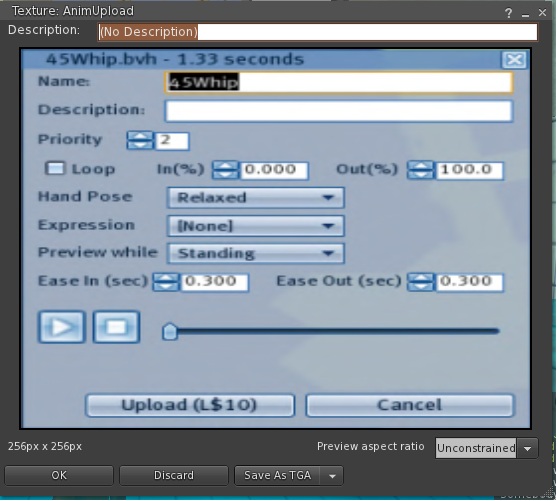
There are seven levels of animations that I am aware of currently in SL: 0, 1, 2, 3, 4, 5 and 6. The higher the number means the higher the priority. The animation priority (through 4) is set when the animation is uploaded to SL from an external animation file of the type .bvh. A set of choices is made by the person uploading the animation as shown in the picture below:


Most internal SL animations are below 2. These are standard things like the SL waddle, laughing, waving, flying, etc.  Most animated poses are set at level 2. Most dances are set at level 3. The animation that your avatar uses when you go to Appearance is priority 5. Priority 6 can be made through a hacking process and is not recommended.

If you dance using only your HUD, generally you do not have to think about animation priority. The way the HUD works is you dance using only one animation at a time. When you click to dance a different dance, like going from swoon to Sultry Down Body, the HUD stops swoon and starts Sultry Down Body. The Huddles HUD can run only one dance at a time.

=====


RUNNING TWO ANIMATIONS AT ONCE

Once in a while  you may add someone to your HUD and they seem to sometimes dance strangely with jerky movements on some dances or dancing when no one else is dancing. What usually has happened is that the person was dancing on a Dance Ball and then accepted your invitation to dance. Two animations are affecting the person at the same time. You can fix this by asking the person to stop the Dance Ball dance.

You can intentionally run two or more animations at once in a number of ways. Here are some ways to do it:

  1. Use two dance HUDS at one time
  2. Use a dance HUD and a Dance Ball dance at one time
  3. Use your HUD then open a dance from inventory and run it
  4. Run two dances from inventory at one time.

=====


DETERMINING ANIMATION PRIORITY LEVELS

You can view the UUID and priority of currently playing animations by selecting Advanced - Character - Animation Info from the menu, or Develop - Avatar - Animation Info on Viewer 2. This gives you information about every animation that your avatar is running. The dance you may be running is listed with the UUID number. If you run two animations at once, you see two UUID numbers.

=====


DANCE PRIORITIES IN ACTION

Get these three animations from the DANCE QUEENS Freebie Box:

90Whip - a Priority 4 head movement only
c-walk - a priority 4 dance
Boogie - a priority 2 dance

Put these animations to your inventory and let's see priorities in action. Double click all three animations from inventory to get three Animation windows each with a 'Play in World' button and a 'Play Locally' button. When you click the 'Play in World' button the animation starts.

First, let's look at how priorities work. Make sure all the dances are stopped. Start the boogie dance only. Hey, you are dancing an old favorite from pre-MOCAP days. Now, without stopping boogie, start c-walk. You stop boogie and dance c-walk. You can see from your information about priorities that two animations are running at one time, but you are dancing only one. This is because c-walk is priority 4 and boogie is priority 2. Your avatar dances the higher priority dance. OK, stop both dances. For you doubters, let's reverse the order. Start c-walk first, then start boogie. Again you dance only c-walk. Although boogie started after c-walk, you are running both animations and the higher priority is what you dance. Again, stop both animations.

Next, start 90Whip. Your head shakes in a no movement. Now, start c-walk and again you dance the nice freebie c-walk dance. Both 90Whip and c-walk are priority 4 animations, so when you run both at the same time, the last one started has priority. Stop both animations. Now, let's look at the reverse. Start c-walk  to dance. Then, start 90Whip. Hey, you are dancing c-walk with your head shaking a strong NO. You are dancing two animations at once.

This happens because an animator can make an animation affect all 23 joints in an avatar


or just some of them. If the animator chooses to affect only some joints, only those joints have the priority set for the animation. The others basically have no priority. When I made 90Whip this is what I did. I made the head movement a priority 4 and the other joints not affected. When the creator of c-walk (Live Gears) made c-walk, he chose to make all 23 joints a priority 4.

When multiple animations, for the same joint, are played at the same time the animation with the highest priority will be effective. If there are multiple animations with the highest priority, then the animation which was started most recently will be effective. In other words, when a new animation is started, each joint is looked at for the priority. If you are running a 4 priority dance like c-walk then start an anim like 90Whip with only the head at priority 4, all the joints except the head dance c-walk and the head uses 90Whip.

=====

xxxx
Nottoo


Hacking to Animation Priority 6


Hacking to Animation Priority 6


This is NOT recommended. I got this info from an SL animator.

=====

Method 1

  1. close Second Life
  2. open Second Life/skins/default/xui/en-us/floater_animation_preview.xml in a text editor
  3. modify this section:  
    label="Priority" label_width="50" left="10" max_val="4" min_val="0"
    name="priority"
    tool_tip="Controls which other animations can be overridden by this animation."
    width="90" />change max_val="4" to desired maximum animation priority level
  4. upload your animation normally, choose desired priority level


=====

Method 2

  1. close Second Life
  2. open Second Life/app_settings/anim.ini
  3. add this section to the top:[GLOBALS]
    priority = 6 (or other desired value)
  4. upload your animation normally, choose desired priority level

=====

Method 3

  1. download the modified qavimator created by Zwagoth Klaar.
  2. Create an animation and save it in the .anim format
  3. polish it using his AnimMaker tool
  4. upload it using Emerald Viewer's bulk upload (Or Zwagoth's uploader patch)

=====

For methods 1 and 2, you may run into a windows permissions error preventing you from modifying the file in question. You can get around this by running your notepad as an administrator (right click > run as administrator), or by copying the contents of the file in question into a new one, then delete/swap the old one out.

What needs testing is whether the server can handle all animation priorities on all joints, whether the various viewer mods posted above have any pitfalls or shortcomings, etc. It would be nice to hear from a Linden whether the server has any issues with higher priority animations. To help new animators, it might also be wise to add some guidelines in the uploader in the form of tool tips for what would be an appropriate priority level choice for certain types of animations.

xxx
Nottoo

Navigating in Your Huddles HUD


Navigating in Your Huddles HUD 111002


THE ALL BUTTON

When  I started dancing in SL using the Huddles HUD, I did not use a notecard. I simply used the All button. This listed all of my dances in alphabetical order. What fun :-)

=====


NOTECARDS FOR DANCES

The ALL button was sufficient until I got to about 50 dances in my HUD. At that point I learned about Notecards and how they allow you to arrange your dances in order. WOW! What an improvement. I could put the dances in the order I wanted and began to think about how to arrange them.

This led to arranging dances by speed. It also led to thinking about how to transition from one dance to another and what to do when the music stopped. My early Notecards looked something like this ...

Sultry Down Body
SLOW
stripper
strippers2b
strippers2c
swoon
danish
dip me in chocolate
crimson breeze
rythm6
Sultry Down Body
SLOW
erotic dance12b
Abranimations - Soft Wiggle
Slow_Seduction
Seduction 1|27|Sultry Down Body|2.2|Seduction 2
Sexy Dip - Abranimations
Sexy Bend - Abranimations
MDHUupdnHBD|12|Dance46|7|Dance38
rythm6
Sultry Down Body
MEDIUM
dizzy orchid
grinding nutmeg
precious morning
milk and honey
crystal roses
firefly
honeysuckle
rythm6
Sultry Down Body
MEDIUM
red chilli sheen
flaming sambuca
carnival
gimme gimme gimme
caramel|25|Sultry Down Body|2|Spirited Twirl - Abranimations
strawberrys and cream
jumpin
rythm6
Sultry Down Body
FAST
Abranimations - Clubbers 8
LETSGOCRAZY by OWENIMATIONS
I am on fire
this joint is jumpin
flapper
crazy legs
orange squash
rythm6


In this notecard I arranged my dances in order from slow to medium to fast. I put my transition dance, Sultry Down Body, on each page in the first slot (lines 1, 11, 21, etc), the speed on the second slot (lines 2, 12, 22, etc), and my waiting dance, rythm6, in the bottom slot at each page (lines 10, 20, 30, etc)

=====


NOTECARDS WITH SEQUENCES

When I got to about 200 dances in my HUD, I began to realize that I could not click through the 20 or so pages fast enough to easily switch between dances. This led to learning how to make sequences of dances that I often used together. A sequence is described in other DANCE QUEEN notes and looks something like this:

stripper|42|strippers2c|81|Sultry Down Body|1.8|swoon|45.5|danish|37|crimson breeze|25|dip me in chocolate|29|swoon|45.5|danish|23|Sultry Down Body|2.2|strippers2c

At first I used both individual dances in a Freestyle mode and a sequenced mode. As my number of dances grew, I realized that I had to start using only sequenced choreography and removed the individual dances from my main notecard. There are just too many pages to click through otherwise.

=====


ANOTHER SOLUTION OR THREE

Now, with the number of sequences approaching 325 and well over 4000 dances in my HUD, I am finding that another improvement in navigation is needed.

There are three ways to do this:

  1. One is to use separate notecards and navigate among them. With the Huddles HUD this means that I stop dancing while the new notecard loads. With large notecards this can take several minutes, which is not a good general solution. Other HUDs, e.g. Fleursoft, have much faster notecard switching and alleviate this problem.
     
  2. Another option is to use the feature of Huddles that lets you find a macro by entering in chat '/99n name of macro.' A macro is any dance sequence that uses the [NAME] macro, for example, Dance Sequence 120. Since I named Dance Sequence 120 in my notecard as 'Urban Killer' this lets me simply type in chat the following:
     
    /99n urban killer
     
    With this approach I can make a separate notecard listing all my Macros and copy and paste into chat. I can leave the HUD on one page, for example my page of Waiting Dances Between Songs. The notecard can be open and minimized in the lower left of your screen, then maximized when needed. Here are what some entries in the notecard might look like:
     
    SLOW DANCES
    /99n DD Slow
    /99n Heat Wave
    /99n SLOWnWET
    MEDIUM DANCES
    /99n Urban Cool
    /99n Urban Killer
    /99n Pearl's a Singer
     
    Each line represents a macro in my active Huddles Notecard.
     
  3. A third solution is to use two HUDs at one time. I wear one in the upper left and one in the upper right (in the Firestorm viewer).
=====


MORE ORGANIZATION

The more I dance the more I realize that there is a lot more than speed that I use to decide which sequence to play with a song. I use something that I call feel. You may use other terms. Feel to me is like the strength of the beat. I defined three categories of feel: soft, moderate and hard. So I combined this with speed to get more categories in which to place my sequences, for example, MEDIUM-SOFT, MEDIUM MODERATE, MEDIUM-HARD. Of course there still are special categoreis like Macarena or Line Dancing or Rap, but for the vast majority of songs, this additonal categorization lets me do a better job of quickly choosing just the right sequence when I hear a song.


=====


NOTECARD CAPACITY

Although I use dance sequences almost exclusively for dancing in clubs, I still keep a long list of individual dances in a notecard. These are the dances that I plan to put in a sequence someday. I have the individual dances categorized as described above. Unfortunately, the maximum size of a notecard is 65,536 bytes, so, if you have a really big main notecard like I do, you have to put your dances for development on a separate notecard from the dances that you use regularly.

=====


If you have more ideas about navigating in your Huddles HUD, let me know.

xxxxx

Nottoo

Saturday, October 1, 2011

" LES MILLE ET UNE NUITS D'EDIKA "


LA GALERIE DES MACHINES
PARIS 1900
LE JARDIN DE PARIS
DX EXCHANGE
&   
EDIKA CRÉATIONS
                                                                               
Present
                                                                                                   
Every first Tuesday  of every month in English
Every last tuesday of every month  in French
21h précises. Heure Française (French time). - 12 pm SLT
                             
+*✰*.¸.•*(¸.•*´♥`*•.¸)`*•.¸.+*✰*+   
                                                        
"  LES MILLE ET UNE NUITS D'EDIKA  "
" THOUSAND AND ONE NIGHTS OF EDIKA "


NEXT EXHIBITION : TUESDAY, OCTOBER 4 th


In the heart of the magnificent and quite sparkling  new Music Hall " the Garden of Paris", a fantastic story will be told.  A poetic and charming world where geniuses and beauties cross themselves because "  once upon a time, in distant parts of the country, very beautiful young  princesses..... " ect


But we shall not say  more about it,  to keep the mystery of this musical journey in the land of the fairies in which  the artists of the Garden, Elize Meili, Darcy Mokeev, Olympes Rhode and Penbelo Beaumont, await you.

Come to travel in the magic of these wonderful and different parts of the countries and t share with all the troop its happiness to dance with us.

Note concerning the organization :  so that the show would take place in the best possible conditions to avoid lag,  and by respect for the public, the entrance  will be made only on reservations. You just will have to give your name before entering to either elize, Olympes or Darcy . As the theater will  only be  accessible to the Galerie des Machines 's group , you'll be invited to join, or take it at the entry.  During the presentation, please Turn off your Aos and mind the rendering cost.  Thank you for your understanding. :-))
The theater will be open 22 minutes before the show, with great arabian music. (Arabia today)


Au cœur du superbe et tout rutilant Music-Hall " le Jardin de Paris",  une histoire fantastique  vous sera contée.  Un monde poétique et enchanteur où les génies et les belles se croisent car " Il était une fois, dans des contrées lointaines, de bien belles princesses....."

Mais chut !! nous ne vous en dirons pas davantage, pour ne pas déflorer le mystère de ce voyage musical au pays de la féérie auquel vous convient les artistes du Jardin, Elize Meili, Darcy Mokeev, Olympes Rhode et Penbelo Beaumont.

Venez voyager dans la magie de ces contrées merveilleuses et dépaysantes et partager avec toute la troupe leur bonheur de danser  avec nous.

Embarquement sur le tapis volant du jardin de Paris ici !
Notez concernant l'organisation : afin que le spectacle puisse se dérouler dans les meilleures conditions possibles (lag) et par respect pour le public, l'entrée se fera uniquement sur réservation. Vous étés donc invités à vous inscrire auprès des artistes et d'accepter l'invitation au groupe "Gallerie des Machines" ou de le prendre à l'entrée.  Une fois sur place, coupez vos AOs et  sureveillez votre rendering cost. Sinon, il faudra choisir entre les costumes du show et les vôtres. Merci de votre compréhension. )))
La salle est ouverte 22 minutes avant le show, avec la fantastique musique de Arabia today : le traditionnel d'aujourd'hui !!!