Showing posts with label Tips. Show all posts

Sunday, October 27, 2019

As the world falls down...


When Second Life is having issues, SLGridStatus is the friend that gives you the bad news that you don't want to hear.

SLGridStatus
@SLGridStatus
[status] Investigating: Some Second Life services are currently experiencing an outage. During this time, some Second Life services may be unavailable including, but not limited to: logging in, and object rezzing. Please refrain from rezz…

1:48 PM · Oct 27, 2019

You should have SLGridStatus on your browser's bookmarks bar, Twitter follows (and notifications), RSS feed reader, or whatever method makes you happy.

Tuesday, September 3, 2019

Gesture Controls

I use a lot of gestures (control-G) for things I say in text. (As opposed to other gestures I use, which you can't see.)

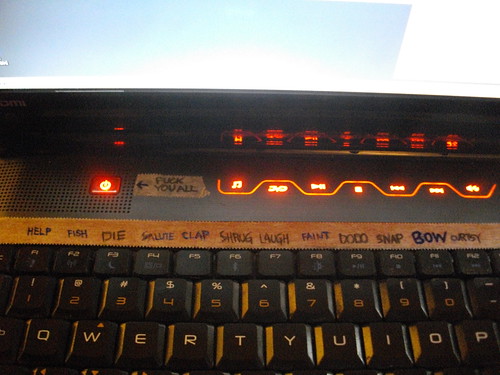
For example, F5 is my applause, F7 is my pre-show link list for Debauche shows, and F12 is bow.

To remember them all, I put a strip of white medical tape over the function key row and write a one-word reminder what they are in permanent ink.
(I think I talked about this a while back... also posted it on Flickr too)

updated gesture shortcuts

The problem is, you can't gesture control everything.

You need to remember the keyboard shortcuts for them, otherwise, you end up having to dive into menus.

Now, for some, such as Chat Console and Shadows and Name Tags, you can configure your Firestorm Quick Preferences for easy access.
(I went over that about a year ago here, I think.)

But for others, such as Midday and Midnight, you're kinda stuck.

And some of those keyboard combinations are difficult for those of us who sometimes can't quite get our fingers to do exactly what we want them to. (My left hand has some nerve issues due to elbow surgery 7 years ago.)

Or remember what each keyboard shortcut combo is. Or maybe my left hand is busy on my Spacenavigator and I don't have a second hand free for something quickly.

This is where I take a step back and go to the Windows level of control.
There are trackpad gestures available to control things.

For my Asus (Windows) laptop, I use three-finger gestures to control the daylight and midnight settings.

Here's how I did it:

1. Windows Start Menu - Gear Icon (Settings)
2. Click Devices
3. Click Touchpad
4. Click Advanced Gesture Configuration
5. Customize your three-finger left gesture to control-shift-X
6. Customize your three-finger right gesture to control-shift-Y
(feel free to customize your other gestures as needed)

Now I just swipe three fingers left, and it's midnight.
Swipe three fingers right and it's midday.
Three fingers up, it gets loud.
Three fingers down, and it's quiet.

You can set them to the shortcuts for other things in your viewer if you wish. Whatever makes things easy.

If you'd like to add even more gesture control to your system, there are a lot of trackpad/touchpad gesture control apps for Windows and Mac Systems out there.

Windows: https://www.thewindowsclub.com/add-mouse-gestures-to-windows-10
MacOS: https://folivora.ai/ (Better Touch Tool)

That way, you can simplify a really complicated keyboard "shortcut" that you can't remember with a simple function key.

I use Better Touch Tool on my Mac at work for volume control, switching between tabs in my browser, and other quick key combinations i can't remember or perform.

What kind of handy tools and shortcuts do you use to make things easier?

Friday, May 11, 2018

How to submit a notecard for an event

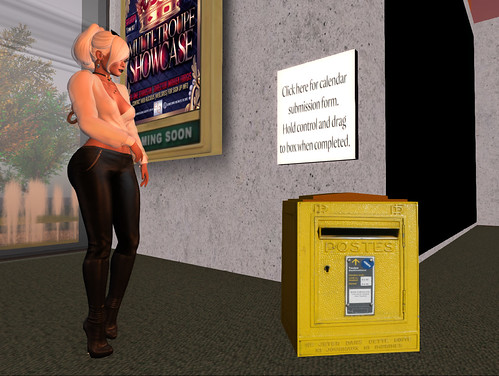
The Dance Queens Mailbox

I've gotten a lot of thumbs up and good feedback on the new platform for the calendar. It's good to see something change for the better. Thank you to everyone who has bookmarked it, used it, and sent in notecards for show announcements.

After all of these posts about the new calendar, I figured I should remind y'all how easy it is to request that we add your event to the calendar, blog, and daily notices:
  1. Go to the Dance Queens infocenter.
  2. Click the notecard giver above the mailbox. You will receive a notecard with instructions.
  3. Fill out the notecard with:
    • Date(s) and Time(s) of your show(s).
    • Name of your troupe and description of event.
    • Special instructions/dress code if one.
    • SLURL/LM (drag and drop the landmark).
    • OPTIONAL: Picture or poster for the blog post (drag and drop the texture).
  4. Find the notecard in your inventory.
  5. Change TROUPENAME to your dance troupe's name.
  6. Drag and drop that notecard on the mailbox.
The mailbox will send an alert to the Dance Queens managers. One of them will pick up the notecards and add them to the calendar (and blog, if requested) as soon as possible.

You can use that notecard for future shows. Just update the information and send it in.

IMPORTANT:
  • Do not send the notecard directly to a Dance Queens manager. Drop it on the mailbox.
  • Only two months in advance, maximum.
  • Try to send them at least 48 hours in advance. Yes, we can add the entries quickly, but you want to give your fans some time to plan ahead, right?
If I'm online and I see an announcement for a show that isn't on the calendar, I'll send a copy of the notecard to the person making the announcement so they can get future shows on there.

WHY USE THE CALENDAR:

Here's a list of reasons to use the calendar:
  • It lets groups see who's got upcoming shows, in case they want to adjust their own show schedules around them. (Collaboration)
  • If a show has multiple performances, like Monarchs or Kiki's or Ballet Pixelle, it lets people plan which one to go to. (Planning)
  • It can send notifications to your smartphone or browser. (Mobility and automation)
  • We build the daily notecard from the calendar. (Convenience)
  • If someone's out of group slots, they can see your upcoming shows. (Limited resources)
  • I put a lot of time and effort into the new calendar platform, so it lets me know that you appreciate the effort I put into it. Or... or... DON'T YOU LOVE ME????? WHERE'S THE LOVE???? (The passive-aggressive approach)
  • I usually do a weekend in dance feature at Inara Pey's blog based on that calendar. (I'm taking this week off because I'm lazy.)
There's probably more reasons out there, like the stars aligning in the House of Neptune while Mercury is in retrograde or something.

Thursday, April 26, 2018

A few more handy tricks for the new calendar...

A few more tips...

Gmail

Did you know that if you use Gmail, you can keep the Dance Queens calendar right there on the side of the mail window?

First, you need to add the Dance Queens calendar to your Google Calendar list:

  • Click the + Google Calendar button in the lower-right corner of the full page calendar.
  • Or, if you're already in Google Calendar, enter dancequeensslife@gmail.com into Add a friend's calendar.

Then, go to your Gmail account.

There will be a cute gear icon in the upper-right corner of the window. Click that, and then click Try the new Gmail.


You'll be presented with some formatting choices... and then the new Gmail will appear.

In the right sidebar, there will be a calendar icon... click that, and today's Google Calendar items will appear in the sidebar:


Because you've added the Dance Queens calendar to your Google Calendar list, you'll get all of the events we have on the calendar. Use the navigation controls at the top of the Google Calendar sidebar to check out the upcoming schedule.

Now, I know... not everyone uses Google. Some people use Hotmail or Yahoo or the Windows or OSX calendar applications. If your calendar application supports iCal format, just copy-paste the following URL into the appropriate menu option:

https://calendar.google.com/calendar/ical/dancequeensslife%40gmail.com/public/basic.ics

Chrome Web Browser

You can get calendar alerts in most web browsers, too.

I use Google Chrome Web Browser for a lot, and I've added the Google Calendar Extension to it.

Click the three dots in the upper-right corner of the browser's toolbar:


Then click More Tools and then Extensions. The Extensions window will appear.

Click the hamburger icon in the upper-left corner of the window, and then click Open Chrome Web Store in the lower-left corner. The Chrome Web Store window will appear.

Then, search for Calendar. Google Calendar's app will appear. (I mean, it's their store. Of course, it will be listed first.)

Click the Add To Chrome button, follow the instructions, and you'll begin to get alerts for upcoming shows.

Now, if you're getting multiple alert popups per show and it's driving you batty, just turn off alerts for all but one of the applications or plugins and you'll be fine.

You can do this for other browsers, too... Firefox and Microsoft Edge and other browsers also support various apps.

Don't like the colors?

You can change the colors of a calendar's events easily.

Go to your Google Calendar.

Then, point to the Dance Queens calendar (dancequeensslife@gmail.com) and click on the three dots. A menu pad will appear.


Select the color you want to use.

Yay, it's pretty now!


It works for other groups too...

A lot of dance groups and events publish their own shared Google Calendars, such as Lighting The Way. From the snapshot above, you see that I've got The Listening Room SL, Idle Rogue, Seanchai Library, and the Houston Astros, too. If you have a Google Calendar address and can add them to your Google Calendar list, you can track their events, too.

What groups out there share their own event calendars? Share them in the comments.

Monday, April 23, 2018

TIP: Arrive early, and arrive ready

So, every now and then, we get suggestions for articles from you.

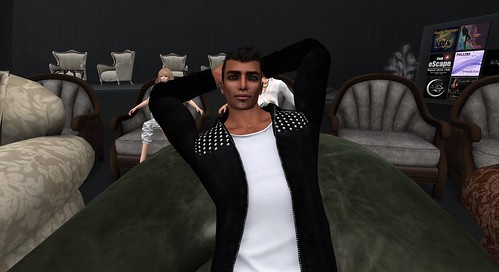
Today's helpful tip is from our friend Usher Piers. I know I have a photo of him. One moment...

Club Image Audience Shots

(I think that's Usher. I suck at labeling photos.)

Okay, his tip: when you can, please arrive as early as possible to shows.

Yes, arriving early allows you to load up textures and get a good seat and maybe dance along with the people in the Winds of the Sahara pit, but there's more to it than that.

Winds of the Sahara - April 22 2018

(But some days, I just keep the camera on Eva for the whole show. No, not creepy at all.)

If you arrive late, each person has to load your avatar and appearance and textures and telemetry, which can overload a person on a slow or limited connection, or on a slow computer. This sometimes disrupts their connection to the music stream, disrupts their ability to load textures and other resources for the act, and causes other issues.

It's like being out on the water in a little boat, and a bunch of ships pass by quickly, and you swamp out from their combined wake. It takes a while to recover from that.

If you arrive at a reasonably early, it gives them time to load all of that... or derender you after you drop into the lobby.

Happy little ships out at sea. Yay.

Yes, I know, sometimes the calendar is packed tighter than a can of sardines in a hydraulic press (MY GOD THIS WEEKEND AUUUUUGH!), but when you can, please arrive early.

And, I suppose, cutting down on your scripts and textures and rendering cost before you teleport in is also a good thing. I mean, who doesn't already know about the "Please remove any unnecessary scripted items, facelights, attachments, or HUDs" speech by now, right? It's like the seatbelt speech before an airplane flight. We all could recite it by heart, but... do we really take it to heart?

Especially those of you who are performers out there in the audience. You know the mushy hell that is lag and slow rezzing and slow-loading sets and messed-up movers. You hate it. Don't you think your fellow performer up there on stage hates it too?

You love to perform and perform well. They love to perform and perform well. C'mon, people. You, them, and performance. Share the love, make it a threesome, and drop the load. (Feel free to shout PHRASING! in the comments.)

I have an outfit pre-prepared for going to dance things. It's not completely stripped-down, but it's a balance between looking good and "EVERYBODY LOOK AT ME, NOT THE STAGE!" diva-mode.

Lazyass

EXCEPTION: If I am on stage, it's okay for everybody to look at me. You can aim the rotten tomatoes better that way.

Debauche - April 22 2018
(Hit me with your best shot. Fire Away.)


If you have tips on how best to enjoy a dance performance or want to share some thoughts you want amplified out to the dance world, hey, just drop me a line. My display name is "R." and my username is "crap.mariner" - I probably have photos of you. No, you can't have the negatives.

Tuesday, January 23, 2018

So, you want a Flickr group for your dance team...

Hi there. Some more helpful tips.

Lots of folks post up dance performance photos on Flickr. It can be hard to track down the photos from a performance. One way to collect up all of the photos of your group’s performances is to create a Flickr group.

(NOTE: If you have any shortcuts to do any of these tasks, let me know in the comments.)

GET SIGNED UP OR SIGNED IN

Let’s get signed into Yahoo and Flickr:

Go to flickr.com

01

If you have a Yahoo account, click Log In. If you do not have a Yahoo account, Sign Up.

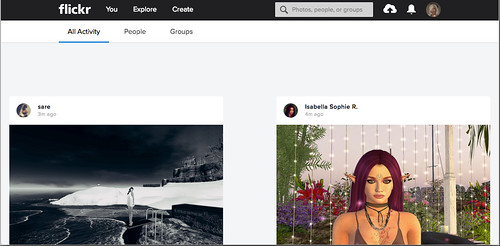
After you jump through all the registration hoops, you'll land at your Flickr home page.
06

Be sure to bookmark this page so you can get back to it quickly.

CREATE THE GROUP

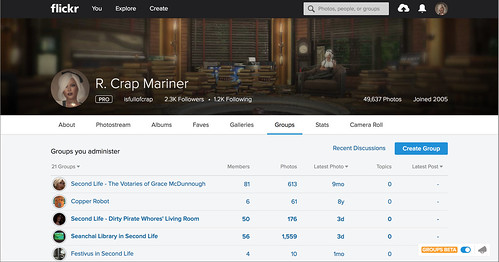
Now let's create the group. Point to You and then click Groups.
07

Click the Create Group button.

08

We're going to create a Public group that anyone can join, so click that first Create button.
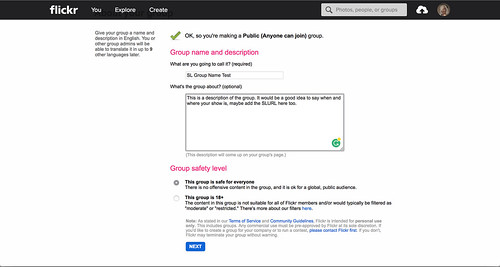
09

Enter a name for your Flickr group. It should probably contain the name of your dance group, maybe toss an "in SL" or "in Second Life" there. This will make it easy for folks to find your group when they upload their photos.

Then, enter a description for the group. I'd recommend that you mention when y'all perform, the SLURL to your home theatre, who to contact, etc.

Finally, select the group's safety level. If you're planning on a lot of naughty bits or naughty deeds, you may want to consider 18+.

Then, click the Next button.
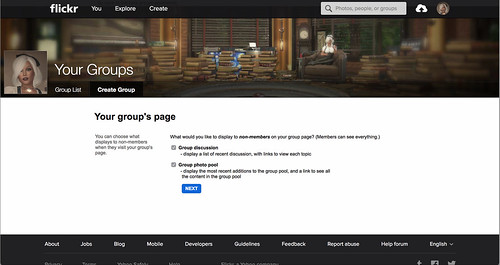
10

Okay, this one's kinda silly. I mean, it's up to you whether you want to have a Group discussion forum on the Flickr group, but why have a Flickr group for photos without a Group photo pool?

Make sure that the Group photo pool option is checked.

Then, click the Next button.
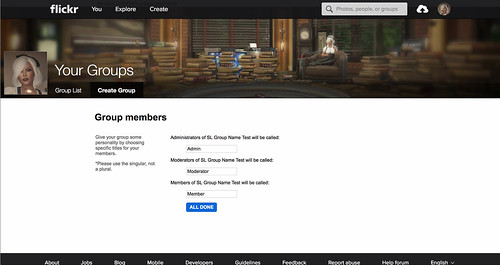
11

Now we can set the titles for access levels. It's kind of like naming the titles and roles within Second Life groups, except it's for group Admins, Moderators, and Members.

Feel free to have some fun with this. Divas, Helpers, Fans... Gods, Angels, Minions... whatever fits your group.

Then, click the All Done button.
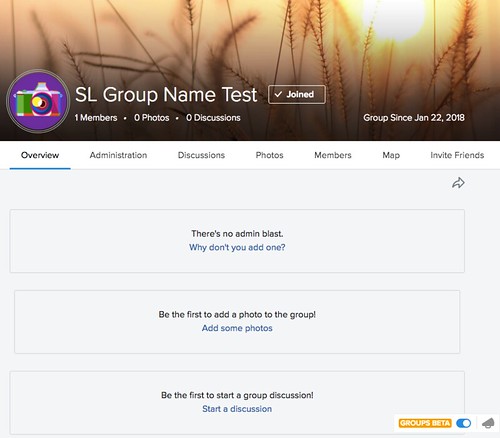
12

Okay, your group now exists! Yay!

You probably want to bookmark this page, too.

ADD SOME PHOTOS

Well... it's kinda empty right now.

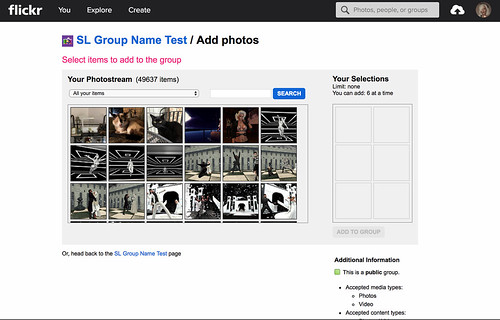
Let's fix that. Click Add some photos.
13

Pick out a few photos from your photostream to add.

You can use the drop-down menu and the text box to filter your photostream, and then click the Search button.

For instance, you can pick out photos from an album that you've set up.

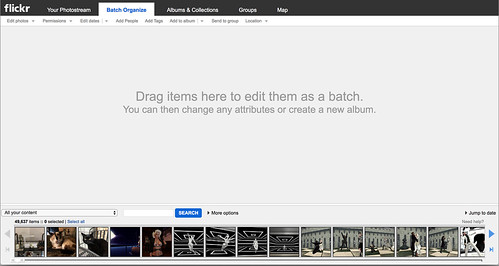
If you have a lot of photos to add, you can use the Organize function.

Point to You and then click Organize.
14

Okay, this interface can be a bit scary, but take a deep breath. It'll be okay.

The ribbon at the bottom is your photostream.

You can use the drop-down menu and the text box to filter your photostream, and then click the Search button.

For instance, you can pick out photos from an album that you've set up.

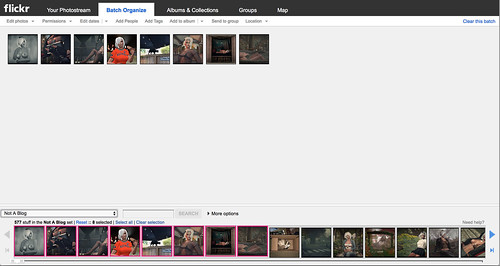
Select the photos you want to add, and then drag them into the center of the page.
15

Then, click the Send to group link there in the menu bar.

When it's done, click the OK button and get back to your group page (Click Flickr, then You, then Groups, and then the group name.)

LET'S MAKE IT PRETTY

Okay, we're back at the group page. Still kinda dull, and nobody else is here, but we can fix that.

Point to the upper banner and click the Edit Cover Photo button.

Then, select a photo and crop it and zoom it.

That will make the header of your Flickr group page interesting.

The icon's still kinda ugly, though. Purple camera... blech. Click that purple camera.

Select a photo that you've uploaded to the group, or click Photostream and pick a photo out of your Photostream.

Then crop and zoom it to focus on a logo or a face or something that represents your group.

There. You've got a group icon now.

CONFIGURE THE GROUP

We're going to need to set up a few more things to make the group ready for others to join and submit photos.

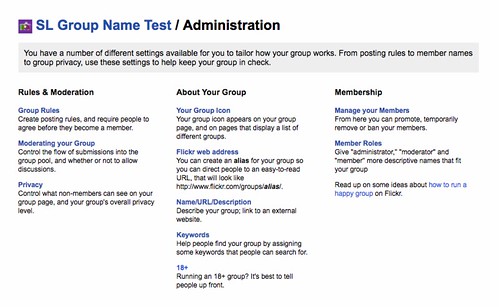
Let's click on Administration in the menu bar there.
16

Here's what you can do with each of these options:

Group Rules: Set some group rules that will appear when people join. You can say No Nudity or Photos of the BLAH Dance Group's Performances Only or other restrictions. Nobody reads these anyway. Oh well.

Moderating your Group: This lets you moderate any submissions to the group, set a member's posting limit per day or week or month, limits the number of other groups the photo can be submitted to, what kind of items can be submitted, the safety levels of the photos, and whether to lock group discussions. Setting a small number reduces the amount of stuff you'll have to moderate, but it may frustrate your snapshot-crazy fans (you know, like myself?). If you set moderation for the group, you'll need to remember to accept or deny groups from the moderation queue. (I'll cover that later.)

Privacy: This lets you set whether non-members can see the group discussion or the group photo pool. Also, you can change the group to Invite Only or Private.

Your Group Icon: In case you come up with a better group icon for the group.

Flickr web address: Instead of some meaningless code with an N and an at symbol in it, you can put a meaningful URL directory that includes your group name. That way, when you mention the Flickr group in chat or on a web page, folks will see that it is your group. Branding is awesome!

Name/URL/Description: This lets you update the group's name and description, like when you need to update the SLURL to a new landing site for your home theater or a publicity contact's name. Also, you can point to another website, such as your Facebook group or your blog site. This information will appear in your About page.

Keywords: This lets you enter a bunch of search terms to make it easier for people to find your Flickr group. secondlife and art and dance and choreography and burlesque... those kinds of things.

18+: This lets you change the 18+ adult setting for your group, in case you've gone naughty... or cleaned up your act.

Member Roles: This lets you update the titles for your Admins, Moderators, and Members.

MANAGE YOUR MEMBERSHIP

Okay, so I left Manage your Members for last. This option brings up a list of the members of your group in the Admins, Moderators, and Members roles.

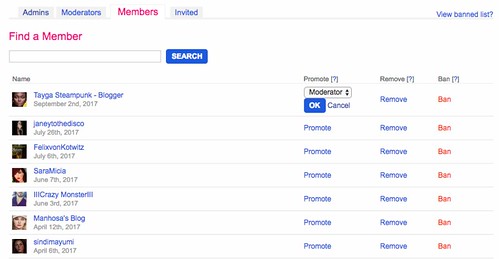
You can promote trusted people to Moderators easily. (cough cough hint hint) Just click on the Members tab, find their name, and click the Promote link in that row. Then, select the role that you want to promote them to.
19

If someone's being a jerk, you can Remove them from the group or Ban them entirely. This is useful if some fashionista decides to spam their modeling shots in eleventy billion groups.

I suppose you're going to need some people in the group before you can manage them, right?

INVITE SOME PEOPLE

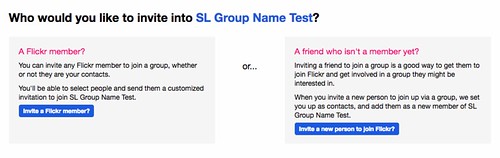
Let's invite a few friends to join the group. Click Invite Friends in the menu bar.
17
Then, click the Invite a Flickr member button.
18
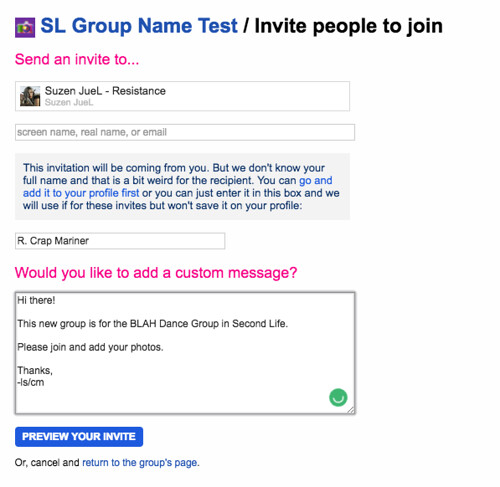
You can enter in Flickr names and select them from the list that appears.
Add a few more names for a mass-invite.

Then, enter a custom invitation message to let them know what dance group it's for.

Finally, click Preview Your Invite button, look it over, and send it out.

(Feel free to invite me while you're at it. I probably have eleventy billion photos of your group ready to add.)

GET THE WORD OUT

So, how else can you let people know about this Flickr group?

Here's some ideas:
  • Mention the Flickr group at your performances.
  • Search for photos of your performances and invite them to join your group. (I'll cover that later.)
  • Add a poster at your home theater.
  • Make an announcement over your SL group.
  • Post on your Facebook page.
  • Embed a Flickr sldieshow in your blog or web page.
  • Post the link in the comments of this post to show that the procedure works.

MODERATE THE PHOTOS

If you set the group to moderate incoming photos, they're going to stack up in a queue. And that queue can build up quickly, especially if you saw me, Elli, Judith, or other photographers in the audience.

The system should send you notices via email, and a banner will appear on your Flickr group page:

20

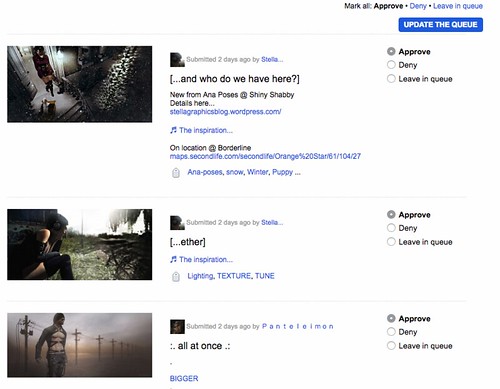
Click that photos pending link, and the moderation queue will appear.
20

You can select whether Approve, Deny, or leave a photo in the queue for someone else to approve or deny.

You also can mark all of the photos in the queue as Approve, Deny, or Leave in the Queue.

Then, click the Update the Queue button to save your changes.

INVITING INDIVIDUAL PHOTOS

Let's say that someone posted a photo of a performance and you want to invite that person to add that photo to your group.
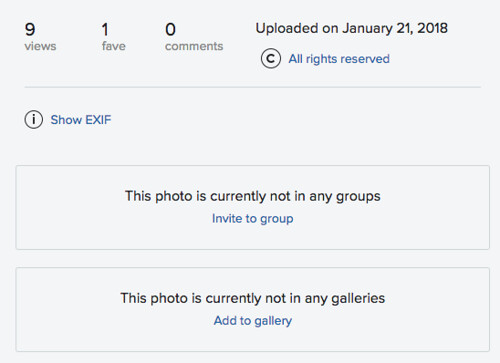
24

Just click on the Invite to group link on the sidebar.
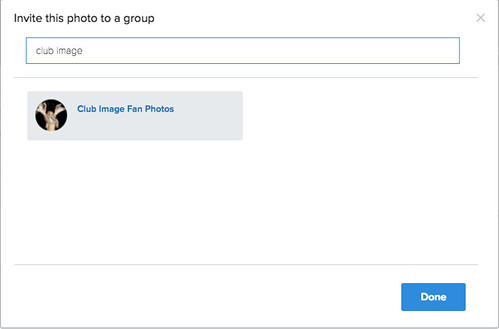
23

Then, select the group out of the list and click the Done button.
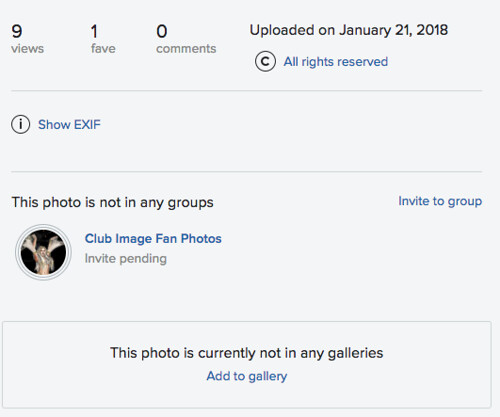
22

There. You've invited them to add the photo to the group. Not only will that invite them to add the photo to the group, but it will make them aware that your group exists for future photos.

ADD PHOTOS WHILE YOU UPLOAD

You can add photos to a group while you upload them to Flickr. This can save you a bit of time, whether you're a group owner or a photographer.

While you're using the Flickr Uploadr, just click the Add to groups link in the sidebar.
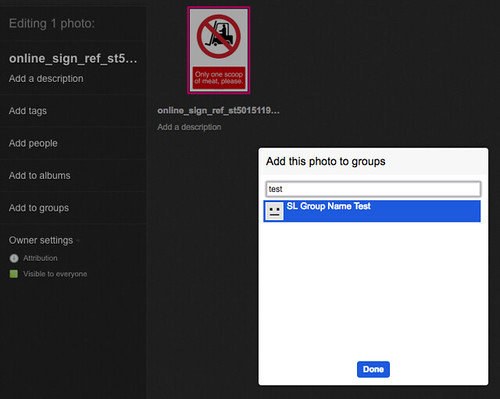
25

Pick the group out of the list, and click the Done button.

WRAPPING IT UP

There's a lot more to Flickr and Groups that I didn't cover.

Did I forget to cover something important? Got some tips and tricks folks might find useful?

Did I make a mistake somewhere? (OH NOES!)

Are there other photo sharing sites that have community and collaboration tools like Flickr that you use?

Let me know in the comments.

Thursday, June 14, 2012

Dancing With Dance Chairs


Dancing With Dance Chairs 120614

I don't do a lot of dancing with Dance Chairs but I thought it might be fun to have a way to dance with my HUD using a chair.

So, my first step was to get the Dance Chairs that are sold in SL. I limited myself to the MOCAP makers since I wanted to look sexy and not robotic. I also decided for now to skip the chairs that are for two people, i.e. one seated and the other dancing. I found three: the A&M chair, the Henmations chair and the Sine Wave stool (left to right in the picture)

A&M makes three different versions and Henmations makes a lot of versions, but each vendor's versions only are different in color and texture. I display the red ones because I like red.

In each chair there are dances and a script to manage the dances. There are a total of 30 dances (three from A&M, twenty-one from Henmations and six from Sine Wave). Each chair starts the dancer at a different point. I used the choreography grid placed under the chair to show you the differences, then took a pic from above.

Here is the start of an A&M dance which is about 3/4 of a meter behind the centerpoint of the chair. Two of the three of the A&M dances start at the same position. One starts about 1 meter to the right of the chair.


All of the Henmations dances start about 1 1/2 meters to one side of the chair.


The six Sine Wave dances all start with a different position. Here are two examples:


The Sine Wave dances are much older than the the A&M or Henmations dances and they were not designed for sequencing. The dance makers at Henmations and A&M have developed a more sophisticated understanding of our dance sequencing needs and generally start their chair dances with the same position (thanks Jariah and Hendrik, xxx). The Sine Wave dances also are for a stool rather than a chair. This means that the avatar dancing any of the dances from Sine Wave would go through any chair that has a back. Because of these two negatives on the Sine Wave stool dances, I decided to set them aside and concentrate only on the A&M and Henmations chair dances.

I think chair dances could made more useful if they started from a sitting position. Then, you could sit in a chair like anyone else until you wanted to dance and BOOM, up you stand and start dancing. Then you sit again at the end. (This is for you, Dance Makers)

Anyway, next I wanted to see if I could match the A&M dances with the Henmations dances. To do this I needed to find a place where the transition would be okay. Since one of the A&M dances starts at about the same place as the Henmations dances (to the right of the chair), I knew that transition would be okay. The two A&M dances that start behind the chair also have places in the dance where the dancer is to the right of the chair facing forward. Woooo! I knew then that all three A&M dances could transition reasonably well to the Henmations dances.

Next, I looked at all of the Henmations dances to see if there are any that position the dancer behind the chair facing forward at any time during the dance. If so, this would be a transition place. I found two that did this and stopped looking. I knew that I could build sequences that use all the chair dances from A&M and Henmations.

Then a thought occurred to me. Since the chair dances all start off the center point, are there other types of dances where this is the case? Most good MOCAP individual dances start at the center point, which would place the dancers legs in the chair ... not what I wanted. BUT, couples dances almost always are off-set from the center point. I had several couples dances in my HUD and I tried them. For example, the female part of The Butterfly worked perfectly with the chair. There was no overlap of my avatar with the chair and it started at a position where I knew I could make a reasonably good transition. There was also a place in The Butterfly where I could transition back to a Henmations dance. Here is the starting point of The Butterfly.


WOWIE!!! Suddenly, this opened up a whole new use for me for couples dances. Some can be used as individual dances with certain props like Dance Chairs. HAHAHAHA. I love it ... AND ... the reverse is possible, Chair Dances can be used with some couples dances when you want a good transition to individual dances from a couples dance. HAHAHAHA. WOW!

You can tell I am a fanatic when this type of discovery opens up new dance possibilities. You probably are part fanatic too if you are still reading this.
Once I had the transitions figured out, the next step was to make the sequences. I wanted two options for each dance sequence. Option one was to rezz the chair as a part of the sequence. Option two was to rezz the chair separately then dance on it using my HUD. Option two is really easy. You can just rezz a Henmations or A&M chair and sit on it, then use your HUD. If you want to be fancy, you can remove the dances from the chair and put in the freebie dance (in the Free Stuff Box in Dance Central) I made called "standing back 0.5 m" which positions you behind the chair in a standing position. Here you can wait until the music starts.


Option 1 involves putting the chair in the HUD and rezzing it. Both the Barre and Huddles HUDs allow this and the process is described in another post. You might consider making your own chair instead of using the A&M or Henmations chairs for rezzing  during a dance. Both are sculpties, which are good for saving prims, but are slower to rezz than regular prim chairs. If you are into building things, think about making anything you want to dance on ... a stump, a large egg, a large beach ball ... as long as the height is right you can dance on it.

Well, I have kind of exhausted myself with all this excitement. Maybe, I will let you do the fun of making some dance sequences for your HUD that involve chair dancing. Send them to me and I will publish them.

xxx
Nottoo

Tuesday, October 4, 2011

Show Tips


Show Tips 111004


When you are presenting a show to a large group, you need to plan for many things. This note summarizes the things I have seen at Dance Festivals and shows that helped different groups put on their best show or would have.

=====

1. LAG

Lag is a killer for Dancing. Here are some things you can do:

a. COLLISIONS - Design your stage so there are no collisions. Collisions occur when prims overlap with each other. The sim owner can look at the collisions on her/his sim and help you with it. Collisions cause lag.

b. SCRIPTS - Minimize the scripts in your stage to only the essentials. Again the sim owner can analyze your scripts.

c. CACHE YOUR DANCES - This will help you reduce lag for yourself.

d. RUN YOUR DANCES BACKSTAGE - Once you work on your own lag, you can also reduce the lag that others see by running your dance sequence anywhere on the sim at about the same altitude. The idea is to get the dances that they will see into their cache. You can do this by making a notecard of only the dances that will be used in your show, then in the center of the audience just before your show (or maybe under the audience platform or backstage) run the one second "Load Your Cache" described in 1.c. above. This will get all of your dances into the audience's cache and make their experience better.

e. TELL THE AUDIENCE ABOUT AVATAR IMPOSTERS - The step in 1.c. describes avatar imposters and how they make can make dancing look bad. Telling your audience before a show so they can adjust their Preferences will help their experience.

e. AUDIENCE SCRIPTS - If you are going to give the audience helpful tips, you may want to ask then to turn off their own scripts like HUDs and AOs. This will reduce lag for you.

=====

2. STAGE DESIGN AND OPERATION

You want your audience to see your performance and not see things that you do in the background or backstage.

a. SELECTION BEAM - When you are presenting a show different people have different responsibilities. Some of those responsibilities may include clicking buttons or moving objects. When you are on stage you want your selection beam turned off so the audience doesn't see that you are clicking on something. This can also show up with an arm movement or a turned head if the animation you are doing is a low enough priority.

b. PHANTOM WALLS - Phantom walls are a good idea if you are walking around on stage even if you use moving pose balls with Zhaza's system (DB System) or the XPOSE. If you look at the second tab when you edit an object, you will see the option of using Phantom. Choose Phantom for your walls. This lets avatars walk through them. This is important to get backstage especially if things go wrong.

c. CONTROLS BACKSTAGE - There is nothing worse than a member of the audience clicking on your controls and messing up your show. Put your controls backstage or in a place where it is not so easy for audience members to click unintentionally or intentionally.

d. TRANSPARENT FROM THE BACK - When you are onstage you are usually facing the audience. This means that your camera defaults to being behind you. If you are near the stage back wall, your camera may be backstage. Plus sometimes while dancing you want to see the group from the rear. You can make things a lot easier by making your walls from backstage transparent on the backstage side only. This lets you see everything but does not affect the audience's view of your set. In the DANCE QUEENS Free Stuff Box is a texture to do that.

e. CURTAINS - If your show has multiple acts or you need the stage closed for clothing or set change, you need a way to block the audience's view. There are two ways to do this. One is with curtains and the other is to rezz a screen using the XPOISE, for example. Curtains are nice, but movement is a problem when there is a large crowd. You may want to use a rezzable screen as a backup or your first choice.

f. VIEW - Shows can be spectaculars where the audience needs to be at a distance to capture the feeling or intimate where the audience needs to be close to feel the warmth. When you design your stage think about the audience viewing it and their area. Audience members do three things while watching: 1. stand, 2. sit, 3. dance. Most just stand. Think about obstructions to the view from different angles and the angle that the audience sees things. Most experienced avatars can cam well, but noobs are not so good at it, so keep in mind your audience composition also.

=====

3. COSTUMES

Costumes are an important part of the show, but changing costumes is always difficult with a crowd. Clothes changes always take longer with a crowd and can lead to the wrong outfit for the dance or different dancers with different outfits. There are things you can do to make it easier:

a. MINIMIZE COSTUME CHANGES - Some groups actually have no costume changes. This eliminates the problem entirely, but is not always feasible. If you have costume changes think about using the same clothes in different ways. For example, can a top be used twice. This multiple use reduces the number of changes that you have to make. Another idea is to layer your costumes. You have three layers of tops (undershirt, shirt, jacket) and three layers of bottoms (underpants, socks, pants) plus skirts and gloves. An option is to wear all three layers with each a different costume. Then all you have to do is remove items for costume changes.

b. CHANGE COSTUMES BEFORE THE SHOW - Costumes that have been worn and seen by you and others will load faster. If you go through the entire set of costumes just before the show, this will load them into your cache and speed up the change for you and the audience. You can do this backstage and it will help the audience even if they cannot see you.

c. TIME FOR COSTUME CHANGES - Another way to deal with costume changes is to allot more time. This can be done by closing the stage with a curtain or a rezzed screen so the audience cannot see you or by going backstage. The problem is that during the costume change nothing is happening onstage. This leads to audience attrition. If you set up a light show or particles while you are changing, this adds to lag and worsens the problem. If you have a large dance team, you have the option of some members being offstage for costume changes while others are onstage. This allows you to have the show go on and the costumes to be right each time.

=====

4. TIME

a. AUDIENCE ARRIVAL - In a Dance Festival shows are often scheduled back-to-back meaning there is no break between shows. You might think about giving time for the audience to arrive. Starting the show a couple of minutes after the scheduled time allows the late arrivals to get there.

b. SET UP BEFORE THE SHOW - Your dance group should be in place before the show is scheduled to begin. Try to get your team members there at least 15 minutes early.

=====

5. SOUND

a. STREAM SIZE - Most of us who stream have a capacity of 50. This is enough for almost all purposes including most shows. Since streams are rented based on capacity and time, a larger capacity stream is not worth the money. During a dance festival or other large scale event, the crowd size can get larger than 50. The recent Dance Festival IV peaked at 94 people and was over 50 about two-thirds of the time. This means that some people cannot hear. As soon as a person cannot hear, there is complaining in chat. You want the audience to concentrate on you and to have a good experience. Make sure you have a stream with enough capacity and that you have checked it. In a few cases you may do a show at the corner or edge of a sim. This could lead to a crowd of over 100. Again you can rent a higher capacity stream for a day to solve this.

b. BEFORE AND AFTER THE SHOW - The show is what people come to see, but surrounding the show is the atmosphere you create. Think about the music and environment that your audience is in before your show begins. The right music is a part of that and can start as much as 15 minutes before the show. The music sets the tone for your show. Following the show is another chance to make a final impression. Give the audience time to file out with music that supports the show.

=====

6. PROPS

When you hold a prop and want to let it go, lag can be a problem. One solution to this is to move to the next animation even though you are holding the prop. This is smoother than stopping the action while the prop slowly detaches. Even if the prop has a built in anim, like a musical instrument has, the next animation will override it if the priority is the same or higher.

=====

7. SCRIPTS

Not every show has a script, but many do. Think about recording the spoken parts instead of putting them in chat. This is easier for the audience to hear. If you do use chat, remember that members of the audience speak while the show is going on. Your spoken parts get hard to find in all the chat. You might use all CAPS since these are easier to see. Prepare the script ahead of time and use cut and paste. An alternative is to use the speech reader found in the DANCE QUEENS Free Stuff box.

Using chat also has another drawback in that normal speech only travels 20 m. In small rooms this is okay, but in a large area this means some of your audience cannot hear. Putting the Speaker in the middle of the audience may help solve some of the distance problem.

=====

8. DEALING WITH PROBLEMS

SL causes problems beyond those that you expect from your preparations. Having a plan for dealing with the problems is a good idea. Here are some things to include:

a. AVATAR CRASHES - It happens to us all. When it does, you do not want the avatar relogging onto the stage and waiting to rezz. Set up a landmark backstage and have each group member know how to log in backstage in case of a crash. Once logged in she/he can join the group on stage by clicking a pose ball or pad.

b. HIDDEN POSE BALLS AND PADS - Many groups use pose balls or pads to position and move dancers. If a dancer is missing, the pose ball or pad is visible. Get a script that has a hide/show option for the pose balls so that once you are set up, you can make the poseballs invisible with a command like /7 hide in chat.

c. QUICK EXIT - Sometimes something will happen onstage and an avatar needs to  make a quick exit. Having some backstage pose balls allows a quick departure.

d. PLAN B - You never know what will go wrong, but you should think about two main problems. The first is running out of time. Where can you cut the program at the end to finish on time? The second is to have an alternate finale that is as simple a possible. For example a one person dance instead of the group may be necessary if there are multiple crashes or terrible lag or sound problems.

=====

Please send additions and corrections to me.

xxxx
Nottoo

Forming a Dance Group


Forming a Dance Group 111004


Dancing in SL is fun. It is even more fun when you master using your dance HUD to lead dancing. Many people get to this stage and want to go even further by forming a dance group or team. This note gives an overview of setting up and running a successful dance group.

If you have ever seen a dance group perform in SL, it can be amazing. The choreography, the sets, the costumes, the music can all combine to make a really spectacular show. Here are the main things that you need to consider to start a dance group:

=====

1. MEMBERSHIP

Start relatively small with just a few members. It takes commitment to make a dance group work with lots of practice and preparation. When you start out some people will find that other things get in the way of dancing, so it is best to start with a small dedicated group. Being in a close RL time zone is also important so you have plenty of time together.

=====

2. PROGRAM DESIGN

Someone has to decide what the group will do. Often this is a group decision, for example, an Elvis Show, ballet performances or a 30's Music Show. In putting together a show you need to think about length in time, set, costumes, music, choreography, dance leadership, communication, movement, location, publicity, finances and management. For your first show choose something easy and simple.

=====

3. MUSIC

The sound for a show can be all music or a mix of music and dialog. It can be all pre-recorded or include extemporaneous comments or even live music. The group needs to have someone (or more than one) proficient in using WinAmp/Shoutcast or similar product with a stream to provide the sound.

=====

4. SET DESIGN

The set design can be nothing at all except a bare stage to something very elaborate and interactive with the performers. The set has to be built and may need to be portable to fit the dance location.

=====

5. DANCE LEADERS

Although some dance groups have members without HUDs, every dance group has at least one and usually more than one person who has a dance HUD or something similar and knows how to use it well.

=====

6. COSTUMES AND PROPS

Costumes look great when they fit the show's design. Acquiring the costumes and figuring out how to change during a high-lag show is challenging. Using props adds even more challenge and needs to be considered by the choreographers.

=====

7. CHOREOGRAPHY

Once you have the music selected and the set designed, you can work on the choreography. You can do Freestyle Choreography, but most groups use Sequenced Choreography with the dances tailored to the specific songs in the show. This requires someone (or ones) who can do choreography.

=====

8. COMMUNICATION

Communication during a show is important. Friends conferences are the main way to do this.

=====

9. MOVEMENT

You can set up a show with the dancers set up in a specific location and remain at that location the entire show. More advanced dance groups use movement during the show. The XPOSE, Zhaza's Moving Pose Balls (DB Dance System) or the DanceMaster are used to move dancers around. This requires someone (or ones) to design the movement and to operate it during the show.

=====

10. LOCATION

Knowing the audience and the location is important. If there will be a lot of people, lag will be an issue. The view of the stage is important as is the distance to the stage. If particles are used during a show this adds to lag. Lighting is important too.

=====

11. PRACTICE

A practice area needs to be available where you can do all that the show requires. Practicing makes a big difference in show quality.

=====

12. PUBLICITY

Starting out as a new dance group requires finding a place to perform. Once you find a place, you need to publicize your show and send invitations to your dance group's groupies, your friends and put it in SL events. A logo is helpful too and a write up about the group.

=====

13. FINANCES

It takes some money to put on a show. You can get a lot of free stuff, but expect to spend more than you make. Also someone needs to create and manage the tip jar during the show. You also need to determine how to distribute the tips among the Dance Group.

=====

14. PLANNING

What to do when someone doesn't show up is a major consideration. Lag is always a problem and all dances should be run through just prior to the show. After a show you should review what went well and what you could do better. Putting on shows is a learning experience.

=====

xxx

Nottoo Wise